Virtualizing Firefox Bon Echo with Altiris SVS
The next release of Mozilla Firefox is approaching, with some of the following new features:
- Built in Anti-Phishing protection
- Search suggestions now appear with search history in the search box for Google and Yahoo!
- Support for client-side session and persistent storage
- Changes to tabbed browsing behavior
- Search plugin manager for removing and re-ordering search engines
- Better support for previewing and subscribing to web feeds
- New microsummaries feature for bookmarks
- Inline spell checking in text boxes
- Automatic restoration of your browsing session if there is a crash
- New combined and improved Add-Ons manager for extensions and themes
- Extended search plugin format
- Updates to the extension system to provide enhanced security and to allow for easier localization of extensions
- Support for SVG text using svg:textPath
Do you love Firefox and want to help test the bleeding edge versions, but don’t want blood all over your computer? Are you worried that the Alpha software will kill your bookmarks and eat your GMail? Enter Altiris Software Virtualization Solution:
“Where virtual machine utilities like VMware Workstation manage entire virtual computers, Altiris Software Virtualization Solution 2.0 virtualizes individual software installations. Once installed on a system, SVS runs continually. If you install a program under it, SVS grabs all changes to the Registry and file system (including added and deleted files) that the installer makes and puts them in what Altiris calls a layer. Thereafter, the virtualization software directs file and Registry calls to the layer or to the base system as appropriate. The SVS-installed app looks perfectly normal, but disappears without a trace when you deactivate the layer. You can turn the app on and off like a light switch.”
Altiris has made this software free for personal use and I’ve written some instructions to get you started (assuming you have access to a Win32 PC).
Step by Step
- Download Bon Echo Alpha 3
- Obtain Altiris personal use license. You don’t have to input your e-mail address on the download form (unless you want to). Kudos to Altiris for this.
- Download Altiris Software Virtualization Solution
- Install SVS by unzipping the download and double-clicking the
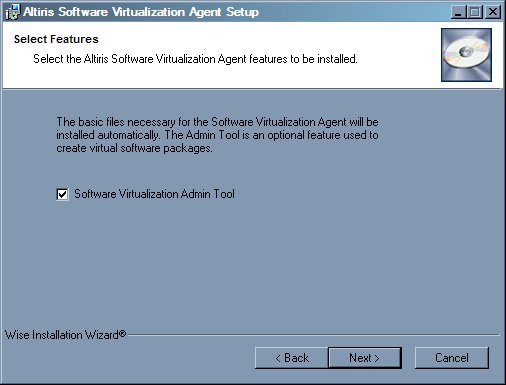
Software_virtualization_Agent.msi. - Make sure to check the Software Virtualization Admin Tool box, we will be using it later to create our own custom Bon Echo layer.
- Reboot (it is Windows after all)
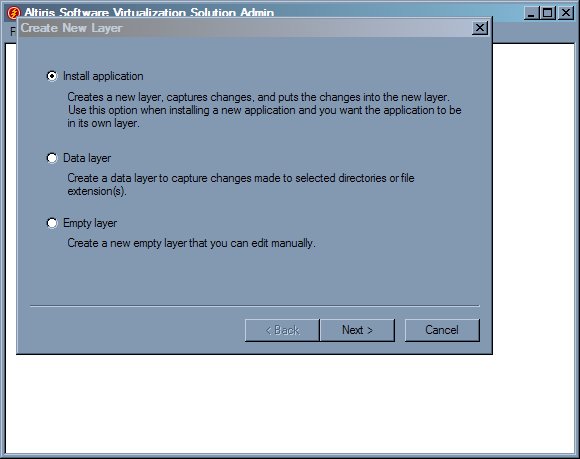
- Open the Altiris Software Admin and select File -> Create New Layer.
- On the Create New Layer dialog, select “Install application” and click Next.
- Enter Bon Echo Alpha 3 as the Layer name and click Next.
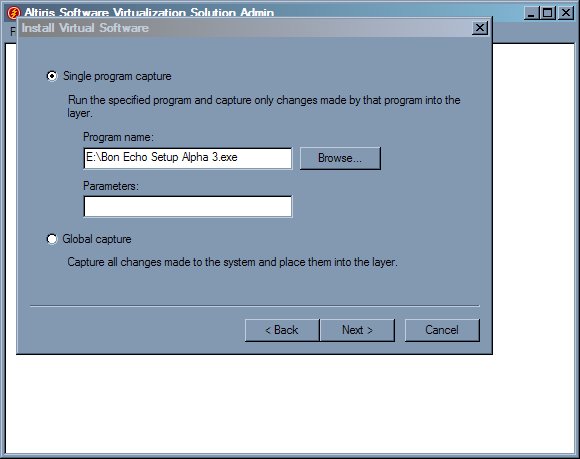
- Make sure Single program capture is selected, then browse to where you saved the Bon Echo Setup alpha 3.exe. Parameters can be left blank. Click Next.
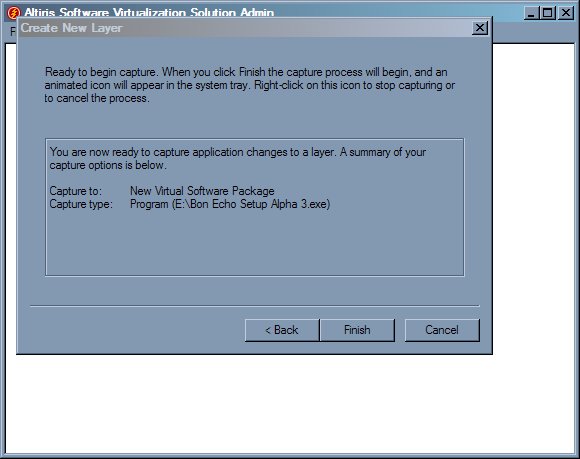
- Verify the information you entered is correct and click “Finish”.
- Proceed through the Bon Echo Setup as normal. You can leave the defaults as is.
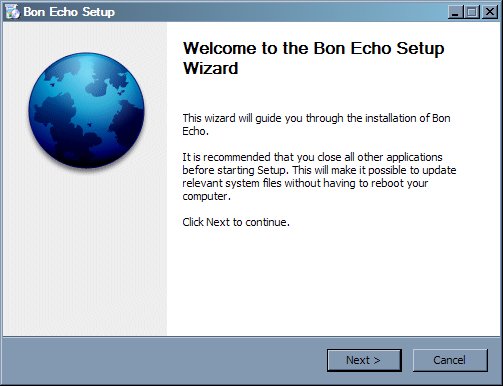
- When you reach the final screen, right click on the Altiris Capture tray icon (yellow lightning bolt) and select Stop Capture.
At this point you should have a virtualized Bon Echo Layer. Use the Altiris Admin tool to enable or disable this layer. You can also reset the layer back to the default state from this interface. With this tool, you can help test beta software without worry of damaging your system. Be sure to report any bugs you discover. There are also many pre-packaged layers available at svsdownloads.com. Cheers!
Comments
it is good